Audio cleanup
AI audio enhancer: clean speech and royalty-free music for every clip
Room echo, traffic, a laptop fan — the recording is never as clean as it sounded in the moment. Splicora strips the noise, lifts the voice, and lets you lay a royalty-free track underneath, all before the clip is captioned and posted.
Free plan · No credit card · Works in the browser
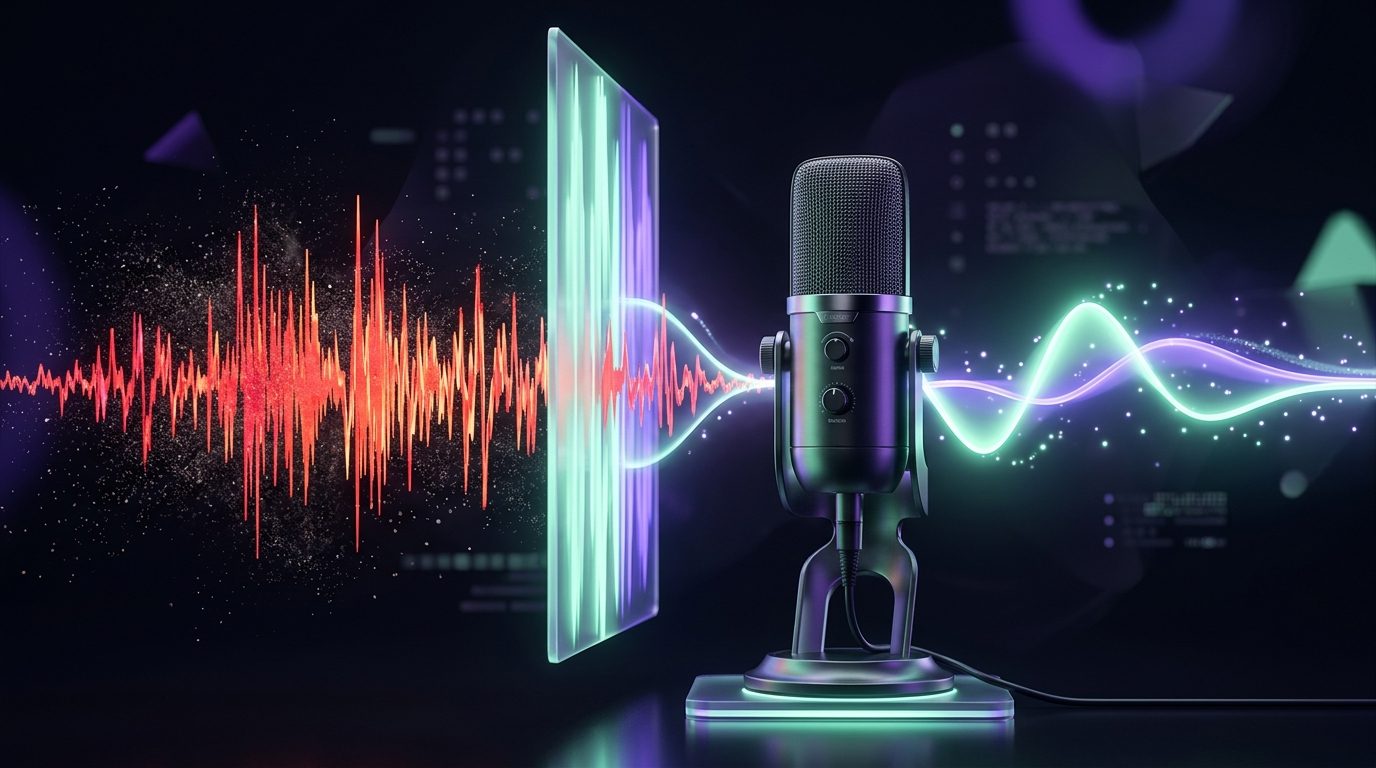
AI Audio Enhancer Still
What you get
AI Audio Enhancer, in practice
01
Noise removal that keeps the voice
Fans, hum, street noise and keyboard clatter are separated from the speech and removed, rather than muffled along with it.
02
Vocal clarity
The voice is levelled and its presence lifted so it sits in front of the mix on phone speakers.
03
Royalty-free music beds
A curated library of beds and sound effects, cleared for every platform. Preview a track, set it under the voice, done.
04
Better captions, too
Cleaner audio transcribes more accurately, so running the enhancer first improves the animated captions.
How it works
From upload to published in 4 steps
01
Upload a video or open a clip
Any clip in your library, including the ones the AI clip generator cut.
02
Run enhance speech
The AI separates the voice from the background and rebuilds a clean track. It takes about as long as the clip is.
03
Add music if you want it
Pick a genre, preview tracks, set the level under the voice.
04
Export or caption
Send the clip on to captions, the editor or straight to the scheduler.
Why audio decides whether people keep watching
Viewers forgive a soft image far more readily than a harsh sound. A clip with room echo or a hiss under the voice feels amateur within a second, and on a phone speaker it can be hard to follow at all. The fix used to be a good microphone and a treated room; for most creators recording a podcast in a spare bedroom or a webinar on a laptop, that was never realistic.
An AI audio enhancer works after the fact. It models the voice separately from everything else in the recording, removes what is not voice, and levels what is. Splicora does this on any clip in one click — the same tool the Speech Enhancement guide in the help centre covers.
What gets fixed
- Constant noise — air conditioning, fans, electrical hum, the hiss of a cheap microphone.
- Intermittent noise — traffic, a door, typing, a chair. Reduced without leaving a hole in the voice.
- Room tone — the echo of an untreated room is tightened so the voice sounds closer.
- Levels — quiet passages come up, loud ones come down, so the clip does not need the volume adjusted mid-way.
What it will not do is invent words that were never recorded. If the voice is completely buried, the enhancer can only do so much — which is why it is worth running on every clip rather than saving it for emergencies.
The music library
Once the voice is clean, most clips benefit from a bed underneath it. Splicora's built-in library of royalty-free music beds and sound effects is cleared for use on YouTube, TikTok, Instagram and everywhere else without a copyright claim. Preview a track, drop it on the timeline, and the editor shows the waveform so you can duck it under the speech.
Where it sits in the workflow
Clean audio first, everything else after. The subtitle generator transcribes more accurately from an enhanced track, a voiced hook matches the clip better when both are levelled, and the clip generator can apply enhancement to a whole batch of shorts at once.
Before and after: what to expect
On a typical laptop recording in an untreated room, the enhancer removes the fan and the room echo and brings the voice forward by a clear margin — the difference between a clip that sounds like a Zoom call and one that sounds like a studio. On a good microphone in a treated room it does very little, which is the right outcome. On a phone recording outdoors it reduces wind and traffic but cannot recover a voice that was never captured clearly; in that case it is still worth running, because the subtitle generator transcribes the cleaned track more accurately.
The enhancer is not a mastering suite. It does one job — a clean, level voice — and hands the clip on. Music, ducking and levels between clips are handled in the editor.
Sounds like a Zoom callSounds like a studio
FAQ
Questions people ask
Yes. Upload the video and Splicora processes its audio track, then re-attaches the cleaned audio to the same video.
It is designed to isolate speech, so music mixed under a voice will be reduced. If you want to keep original music, skip the enhancer for that clip.
Yes. Every track in the built-in library is cleared for use on any platform without attribution or copyright claims.
Yes. Add your own licensed tracks to the library and use them in the editor like any other.
Works with
More of the toolkit
AI Captions01
AI Subtitle Generator
Word-accurate animated captions in 100 styles (20 free), positioned anywhere on screen, with translation to 20+ languages.
Open this toolVideo Editor02
AI Video Editor
A browser-based multi-track editor with waveforms, royalty-free music, AI captions, B-roll, hooks and export up to 4K.
Open this toolAI Hooks03
AI Hook Generator
Writes a 3–5 second opener from your transcript, voices it with built-in AI voices or ElevenLabs, and cuts it with impact words and sound.
Open this toolSmart Shorts04
AI Clip Generator
Finds the best moments in a long video and cuts them into captioned vertical clips, each scored for viral potential.
Open this toolOne upload, everything after it
Try the ai audio enhancer on your next video
One upload becomes clips, captions, writing, visuals and posts for every connected platform. Free to start, nothing to install.
Free plan available · No credit card required