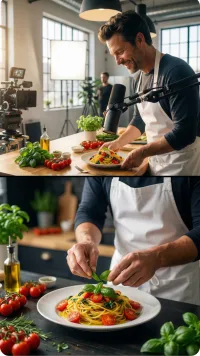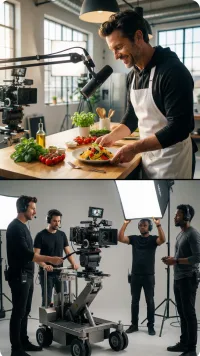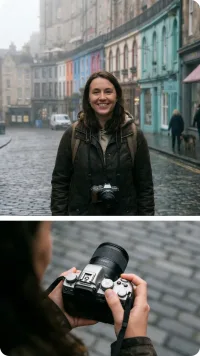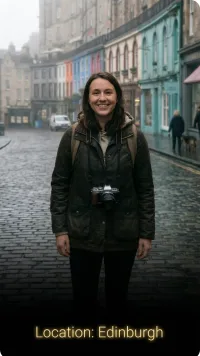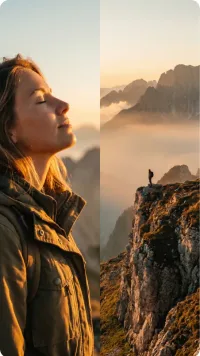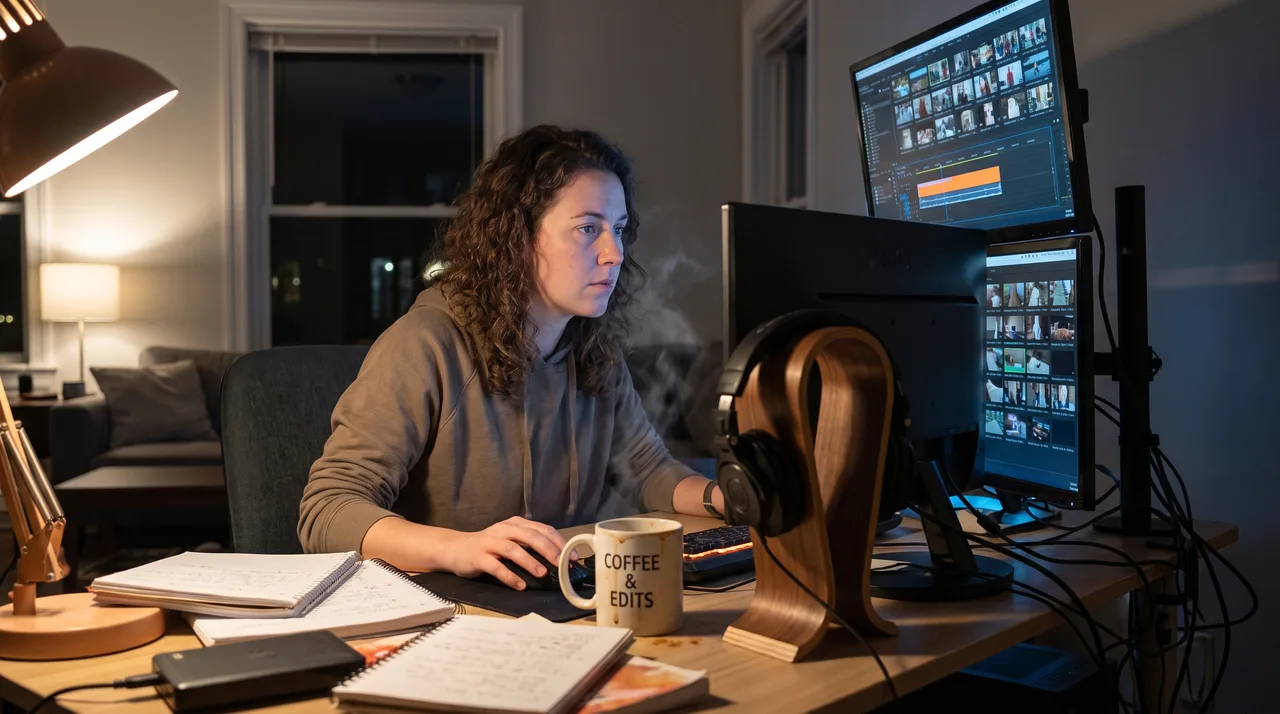
Find free b-roll on sites like Pexels, Pixabay, Coverr, and Archive.org, plus public-domain government footage. To keep it from looking generic, skip clichéd clips, match color and mood to your footage, keep cutaways short, time cuts to your narration, and use one color grade across every clip.
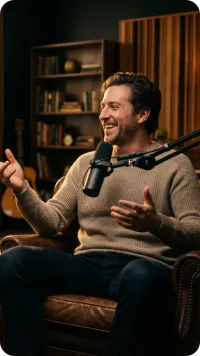
A static shot of your face for eight straight minutes is hard to watch, no matter how good your script is. That's why free b-roll exists: the extra clips you cut away to while your voiceover keeps going. Use it well and it adds pace, shows your points, and hides your edits. Use it lazily and it looks like a corporate screensaver.
Here's where to find free b-roll legally, how to pick clips that don't look generic, and the editing moves that make stock footage feel like you shot it yourself.
What B-Roll Actually Does
Before you hunt for clips, know the job b-roll does. It isn't decoration. Every clip should earn its place by doing one of these:
- Illustrating a concept you're describing out loud
- Hiding a jump cut so your talking-head edits feel smooth
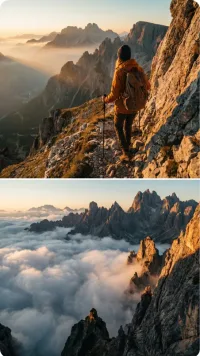
- Setting a mood or location your words can't convey on their own
- Adding visual pace to a section that drags
If a clip doesn't do at least one of those, it's filler — and viewers can tell.
Where to Find Free B-Roll
Good news: there's a huge amount of high-quality free b-roll out there, no subscription needed. The catch is that the most popular clips get overused, so sourcing well matters as much as sourcing cheaply.
The big free libraries
These sites offer genuinely free stock footage with open licenses. Always check the license on each clip, but as a rule these allow commercial use without attribution:
| Source | Best for | License note |
|---|---|---|
| Pexels | Lifestyle, nature, tech | Free, no attribution |
| Pixabay | Broad general-purpose clips | Free, no attribution |
| Coverr | Business, cinematic shots | Free, no attribution |
| Mixkit | Themed packs, backgrounds | Free with license terms |
| Videvo | Motion graphics, VFX | Mix of free and paid |
Beyond the obvious
The clips on the front page of Pexels end up in a thousand videos. To stand out, dig deeper:
- Archive.org holds vast public-domain footage — historical, scientific, and quirky material you won't see elsewhere.
- NASA, NOAA, and government archives release stunning footage into the public domain.
- YouTube's Creative Commons filter surfaces reusable clips, though you'll need to verify licenses and often credit creators.
- Niche community libraries tied to your topic — many hobbyist sites share usable footage.
Shoot your own "free" b-roll
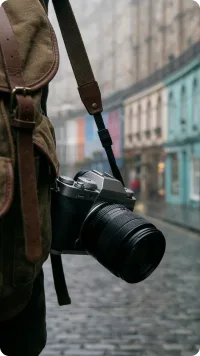
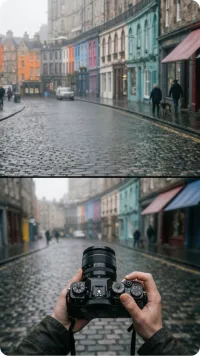
The most original b-roll is the kind nobody else has. Your phone can capture your workspace, your hands typing, coffee being poured, light through a window. Five minutes of filming your own space gives you footage that's unmistakably yours — and it costs nothing.
How to Choose Stock Footage That Doesn't Look Generic
Most stock footage looks like stock footage for predictable reasons. Avoid these and you're already ahead.
Skip the clichés
Some clips have been used so often they make you roll your eyes: the slow-motion handshake, the team high-fiving around a laptop, the lone figure walking down a hallway. If a clip feels like it belongs in a 2014 insurance ad, pass on it.
Match the mood and color
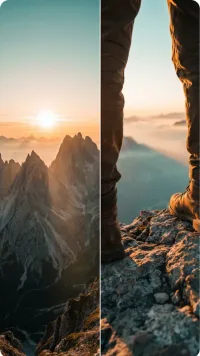
A clip that clashes in tone with your video breaks the spell. If your content is warm and casual, don't cut to a cold, over-graded corporate shot. Look for footage with lighting and energy close to your own.
Favor specific over abstract
Generic "technology" or "success" clips say nothing. A specific shot — someone actually doing the thing you're describing — means far more. Search with precise terms, not broad concepts.
Check resolution and frame rate
Mixing a 24fps talking head with a 60fps clip can look jarring unless you handle it on purpose. Grab footage at 1080p at least, ideally 4K, so you have room to crop and reframe without losing quality.
Video Editing B-Roll Like a Pro
Sourcing is half the battle. The other half is the edit. This is where video editing b-roll separates amateur work from polished content.
Keep cutaways short
A common mistake is holding a b-roll clip too long. Viewers only need a second or two to take in what they're seeing before it loses impact. Short, purposeful cutaways keep the energy up. Let the clip support the narration, not replace it.
Cut on the audio, not the silence
Time your cutaways to land on a key word or a natural beat in your voiceover. Cutting away right when you name the thing you're showing feels intentional. Cutting away during a pause feels like you ran out of footage.
Layer, don't just replace
You don't have to go full-screen with every clip. Some of the best techniques keep you partly present:
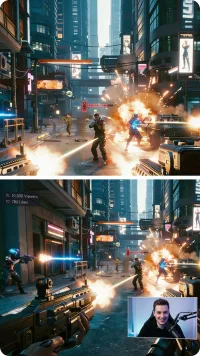
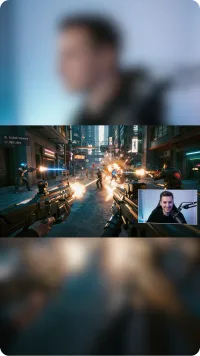
- Picture-in-picture keeps your face in a corner while footage plays.
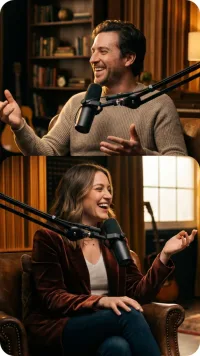
- Split screen lets you show a clip alongside yourself.
- Partial overlays with motion graphics frame the b-roll as part of your design.
Grade everything to match
Color grading is the single biggest fix for the "generic stock" problem. Apply the same look across your talking head and every clip so they feel shot on the same day. Even a simple tweak to exposure, contrast, and white balance works wonders. A light LUT over the whole timeline pulls mismatched sources together.
Add subtle motion
Static stock footage can feel flat. A gentle slow zoom (the Ken Burns effect) or a slight pan adds life and hides the fact that the clip is looping or short. Keep it subtle — aggressive zooms draw attention to themselves.
Mind the audio
Stock clips often come with their own ambient sound. Usually you'll want to mute it so your voiceover stays clean, but now and then a touch of natural sound — keyboard clicks, city ambience — adds realism. Decide on purpose rather than leaving the default audio on.
A Simple B-Roll Workflow
Here's a repeatable process that keeps your editing fast and your results consistent.
- Script with b-roll in mind. As you write, mark moments that beg for a visual.
- Build a shot list. Note what each cutaway should show before you start searching.
- Batch your sourcing. Download everything in one session so you're not stopping the edit to hunt for clips.
- Organize your clips. Keep a folder of reusable footage so good finds pay off across several videos.
- Edit the talking head first, then layer b-roll on top.
- Grade and polish last, matching color and adding motion once the structure is locked.
Licensing: Don't Skip This
"Free" doesn't always mean "use it however you like." Licenses vary, and getting it wrong can mean a copyright strike or a takedown. Keep these rules in mind:
- Read the license on each clip, not just the site's general policy.
- Watch for attribution rules — some free footage requires a credit in your description.
- Check commercial use if your channel is monetized or you're making content for a client.
- Keep records of where you sourced each clip in case you ever need to prove it.
Public-domain footage is the safest category, followed by clips clearly licensed for commercial use without attribution.
Common Mistakes to Avoid
Even with great clips and good intentions, a few habits undermine otherwise solid videos:
- Overusing b-roll until viewers forget who's talking. You're the show; footage supports you.
- Reusing the same three clips across every video, which trains your audience to tune them out.
- Ignoring aspect ratio — a horizontal clip crammed into a vertical frame looks sloppy.
- Letting clips play from the start when the interesting moment is three seconds in. Trim to the good part.
- Forgetting to render a test export to catch mismatched color or stuttering frame rates before you publish.
Bringing It Together
Great b-roll isn't about having the most clips — it's about choosing the right ones and editing them with intent. Start with reliable free libraries, dig past the overused front-page footage, and add original shots only you can get. Then let the edit do the heavy lifting: short cutaways, cuts timed to your narration, consistent color, and a touch of motion.
Do that, and your free b-roll will look anything but free. It'll look like you planned every frame — which, by then, you did.