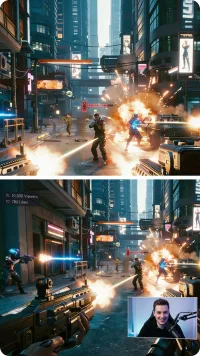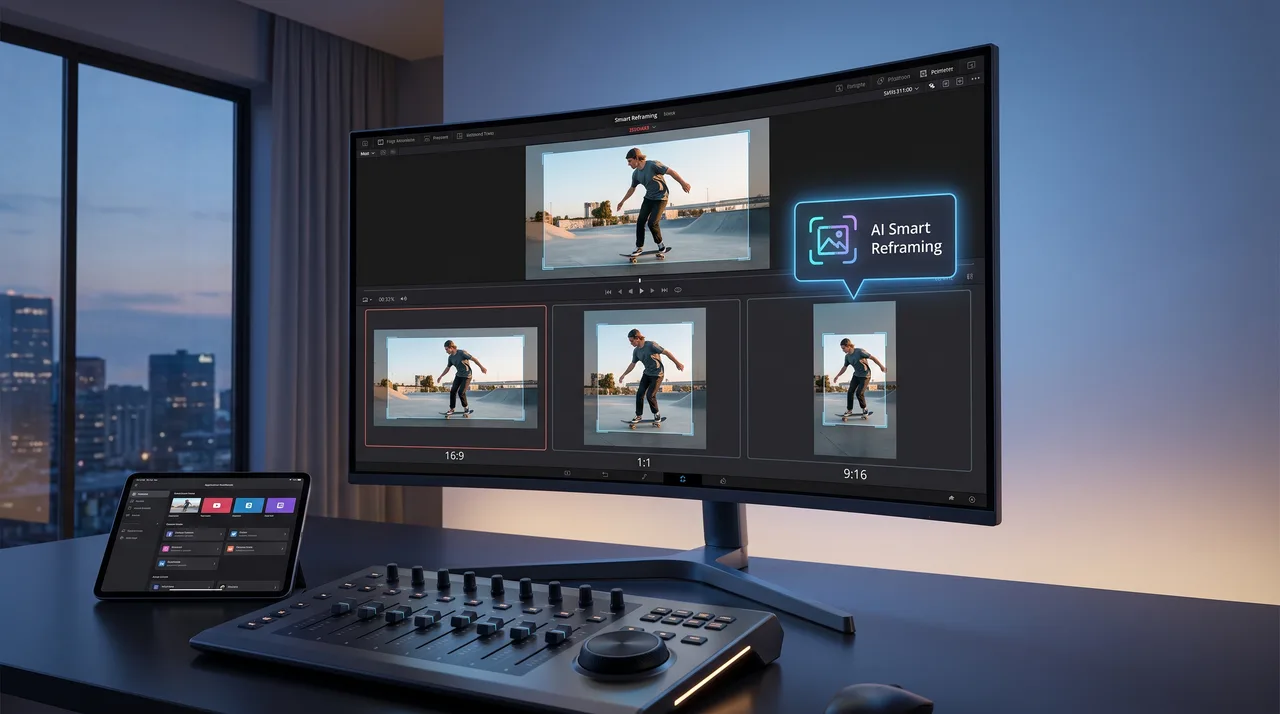
To resize one video for every platform, start with a high-resolution 16:9 master and run it through an AI reframe tool that detects and tracks your subject. Generate 9:16, 1:1, and 4:5 versions, check the vertical crop for tracking errors, reposition captions per ratio, then batch export.
Every platform wants a different shape. YouTube wants widescreen 16:9, TikTok and Reels demand vertical 9:16, and feed posts sit best as a 1:1 square. If you still export each one by hand, you're burning hours cropping the same footage again and again, often losing the most important part of the frame along the way.
Here's the good news. An AI reframe workflow can take a single master video and resize it smartly for all those destinations while keeping your subject centered. This guide covers how it works, where it shines, and how to get clean results on the first try.
Why One Export Never Fits Every Platform
A video shot in 16:9 holds a lot of horizontal information. Squeeze it into a 9:16 vertical frame and roughly two-thirds of the width vanishes. Crop straight down the middle and anything off-center gets sliced off: a speaker standing to the left, a product at the table's edge, on-screen text.
That's the core problem with aspect ratio conversion. The frame changes shape, but your composition was built for the original one. Manual cropping means babysitting every clip, nudging the crop box, and re-checking as subjects move.
Here are the target ratios you'll be converting between:
| Platform | Aspect ratio | Orientation |
|---|---|---|
| YouTube, LinkedIn | 16:9 | Landscape |
| TikTok, Reels, Shorts | 9:16 | Vertical |
| Instagram feed | 1:1 | Square |
| Instagram portrait | 4:5 | Tall portrait |
Serving all four from one timeline by hand is where most creators lose their afternoon.
What AI Reframe Actually Does
An AI reframe tool analyzes your footage frame by frame, finds the most important subject (usually a face, a moving person, or the area with the most motion), and repositions the crop so that subject stays inside the new frame. Rather than a fixed crop that ignores the action, the crop box tracks the subject as it moves.
Think of it as a virtual camera operator who follows your subject and keeps them in shot, whatever aspect ratio you ask for.
The detection step
Most tools run some mix of:
- Face detection to lock onto speakers in talking-head content
- Object and motion tracking for products, pets, or action
- Saliency mapping that estimates where a viewer's eye would naturally go
The system builds a path across the timeline describing where the "interesting" part of the frame sits at each moment.
The reframing step
Once it knows where to look, the tool generates a crop that follows that path. When a subject crosses the frame, the crop pans smoothly to keep up. When two people talk, better tools can cut between them or widen to include both. The result is auto-resize video that looks deliberately composed instead of mechanically cropped.
Step-by-Step: Auto-Resize One Video for Every Platform
Here's a process you can repeat no matter which editor or dedicated tool you pick.
1. Start with the highest-quality master
Export your edit at the largest sensible resolution, ideally 4K or at least 1080p in 16:9. More pixels at the start give the crop more room to move without softening the image. Cropping a vertical frame out of a 4K source still leaves plenty of resolution.
2. Upload and let the AI reframe pass run
Feed the master into your reframing tool and pick your first target ratio, usually 9:16 since vertical is the toughest crop. The AI reframe engine detects subjects and generates a tracked crop automatically. Give it a moment to process the whole clip.
3. Review the tracking, not just the start
This is the step people skip. Scrub through the whole clip and watch the moments where:
- The subject moves quickly across the frame
- A second person enters
- The action cuts to a wide shot or B-roll
Most tools let you drop keyframes to correct the crop if the AI parked on the wrong subject. Fix those few spots instead of redoing the whole thing.
4. Duplicate the setup for other ratios
Once 9:16 looks right, generate the 1:1 and 4:5 versions. The square and portrait crops are more forgiving than vertical because they keep more horizontal information, so they usually need fewer corrections. Your 16:9 version is just the original master, no crop needed.
5. Add ratio-specific framing where it matters
Reposition captions, logos, and calls to action per ratio. Text that's safe in a wide frame can collide with platform UI in vertical. Nudge overlays into the safe zone for each shape before you export.
6. Export each format
Render out all your versions. A good workflow exports multiple ratios in one batch, so you're not babysitting individual renders.
Getting Clean Results: Practical Tips
The quality of your auto-resize video depends as much on your source material as on the tool. A few habits make the automatic tracking far more reliable.
Shoot with reframing in mind
If you know a clip will be cropped vertical later, keep your subject in the center-third of the frame while shooting. Avoid putting critical action at the extreme left or right edges. That gives the reframe engine an easy, stable target and cuts down on jittery panning.
Keep backgrounds uncluttered
Busy backgrounds with lots of movement (crowds, flashing screens, traffic) can confuse saliency detection and pull the crop toward the wrong thing. A cleaner background lets the AI lock onto your actual subject.
Watch for pan jitter
When a subject fidgets, a too-sensitive tracker can produce nervous, twitchy crops. Many tools offer a smoothing or damping setting that makes the virtual camera move more slowly and naturally. Turn it up if your vertical cut feels restless.
Handle multi-person scenes deliberately
Two people on a wide stage can't both fit in a 9:16 crop. Decide ahead of time whether the tool should follow whoever's speaking or stay on one subject. For interviews, speaker-tracking produces the most watchable vertical cuts.
When to Trust the Automation and When to Step In
AI reframe handles most talking-head, tutorial, and single-subject content beautifully with little help. For these, you can often accept the first pass with only minor tweaks.
Manual attention pays off for:
- Fast action sequences where the subject changes rapidly
- Group shots that need a human decision about who matters
- Text-heavy screens where the key info sits in a corner
- Branded content where logo placement is non-negotiable
The smart move is to let automation do the heavy lifting, then spend your time only on the handful of shots that really need a human eye.
A Realistic Time Comparison
To show why this matters, here's roughly how long aspect ratio conversion takes across methods for a five-minute video going to four platforms.
| Method | Setup time | Per-ratio effort | Risk of off-center subjects |
|---|---|---|---|
| Manual cropping | Low | High (repeat per clip) | High |
| Fixed center crop | Low | Low | Very high |
| AI reframe + review | Low | Low to medium | Low |
The fixed center crop is fast but blindly chops everything down the middle. Great until your subject steps sideways. AI reframe with a quick review pass gives you the speed of automation and the composition quality of hand-work.
Building This Into a Repeatable Workflow
If you publish regularly, treat reframing as a stage in your pipeline, not a one-off task. A simple routine:
- Edit once in 16:9 as your source of truth.
- Run AI reframe to generate 9:16, 1:1, and 4:5 derivatives.
- Review tracking on the vertical cut only; it's the strictest crop.
- Reposition captions and branding per ratio.
- Batch export all versions with platform-appropriate file names.
Once this becomes muscle memory, you can turn a single edit into a full week of cross-platform content in a fraction of the time it used to take.
Naming your exports
Consistent file names save confusion when you're scheduling across platforms. A simple pattern:
projectname_16x9_youtube.mp4
projectname_9x16_tiktok.mp4
projectname_1x1_feed.mp4
projectname_4x5_portrait.mp4
Final Thoughts
The days of manually cropping the same video four times are over. With a solid AI reframe workflow, you shoot and edit once, then let the tool handle aspect ratio conversion while keeping your subject exactly where it belongs. Start from a high-resolution master, review the vertical cut carefully, adjust your overlays per platform, and batch your exports.
Do that, and every platform gets a version that looks like you made it just for them, because in every way that matters, you did.