

Images

AI image generator: pictures from a sentence, finished on a canvas

Type what you want and get four images back. Keep the one that works, then erase, extend or restyle it right there, and send it to a thumbnail, a quote card or a post without leaving the project it belongs to.

Free plan · No credit card · Works in the browser

AI Image Generator in Splicora

What you get

AI Image Generator, in practice

Four at once, one to keep

One prompt returns up to four pictures side by side, so you choose from a set rather than running the same sentence again and hoping.

Edit on the canvas

Erase what should go, expand the frame, replace the background, restyle it or move the camera. No round trip to another app and no second subscription.

Reference images

Upload a product, a face or a previous result and the next picture keeps it, so a set of covers looks like a set rather than six strangers.

Priced before you press

The credit price sits on the button before anything runs, and a generation that fails is refunded.

How it works

From a sentence to a post.

  1. Describe the image

    A sentence is enough. Say the subject, the setting and the mood; the shape comes from the aspect you pick, not from the words.

  2. Pick one of four

    Four come back together. Keep one, send another to the canvas, or change the sentence and run it again.

  3. Edit on the canvas

    Brush over what should go, grow the frame to a new shape, swap the background or restyle the whole thing. Each edit is its own small charge, shown first.

  4. Send it on

    Use it as a thumbnail, drop it into a post, or leave it in the project library where the clips and the writing already are.

What the AI image generator makes well

It is built for the pictures a week of posting needs rather than for gallery art: covers and thumbnails, quote cards, product shots on a clean ground, backgrounds for a faceless short, and headshots that look like the same person twice.

Prompts that name a subject, a setting and a light do better than long lists of adjectives. "A ceramic mug on a wet windowsill, grey morning light, close up" is a picture. "Beautiful stunning amazing mug, 8k, trending" is a wish.

What it is not for: anything that has to be literally true. A generated picture of a real place is a picture of somewhere that looks like it, and a chart it draws is decoration, not data.

Read more
  • Covers and thumbnails. Make the picture here, then set the type on it in the thumbnail generator.
  • Quote cards and posts. The writing in a project can sit on an image made for it rather than on a stock photo that nearly fits.
  • Product and brand shots. Upload the product as a reference and keep it recognisable across a set.
  • Scenes for a faceless short. Stills the faceless video generator can cut to, when stock footage does not have what the script describes.
What the AI image generator makes well

Standard and Best, and when each is worth it

Every kind of generation has a cheaper option and a dearer one. For pictures that is 1 credit and 2 credits each, and the page says which you are about to spend before you press.

Standard is the right default. It is quick, it costs the least, and for a background, a draft cover or anything you are going to crop and put type over, the difference is not visible once the picture is in place.

Best is worth the extra when the picture is the thing people look at: a thumbnail that has to hold up at full size, a product shot, or a face. It follows a long prompt more exactly and holds detail where Standard softens it.

Read more

The honest rule is to draft on Standard and finish on Best. Four Standard pictures cost less than one Best one, so find the composition cheaply and then spend on the version you keep.

Standard and Best, and when each is worth it

Reference images and consistent characters

A prompt alone gives you a different person every time. Upload a reference and the generator works from it: the same face, the same product, the same room, across as many pictures as you need.

That is what makes a set possible. Six thumbnails for a series, a product in six settings, or a presenter who is recognisably the same in every short.

A saved character goes further again: the avatar generator keeps one and reuses it, so the person in this week's video is the person in last week's.

Two things to know. A reference steers the result rather than copying it, so expect a likeness and not a photocopy. And the picture you upload stays in your workspace; it is used for the generation you asked for and nothing else.

Reference images and consistent characters

From an image to a post, thumbnail or video

A picture that ends up in a downloads folder is a picture you will not use. Everything made here lands in the project library beside the clips and the writing, which is where the rest of the workflow picks it up.

  • To a thumbnail. Send it to the thumbnail generator, set the type and export the sizes each platform wants.
  • To a post. Attach it to the caption the project already wrote in your brand voice, then publish both from the scheduler.
  • To video. Animate it with the video generator, which starts from a still as happily as from a sentence.
  • Bigger. Upscale it when a platform wants more pixels than the original has.
From an image to a post, thumbnail or video

What it costs

A picture is 1 credit on Standard and 2 credits on Best. An edit on the canvas is 2 credits. Every one of those numbers is on the button before you press it.

The free plan includes 25 credits a month with no card, which is enough to find out whether the pictures are any good before you decide anything. Credits are shared across every tool, so a month heavy on images is a month lighter on video, and nothing is reserved for one kind of work.

A generation that fails costs nothing. The credits are reserved before the work starts and returned the moment it does not finish, including a run that dies half way through. The pricing page carries the full table.

What it costs

Also in Splicora

The pictures are one half of what you can make from nothing. The same workspace generates video from a sentence or a still, voices including a clone of your own, and avatars that keep one character across a series.

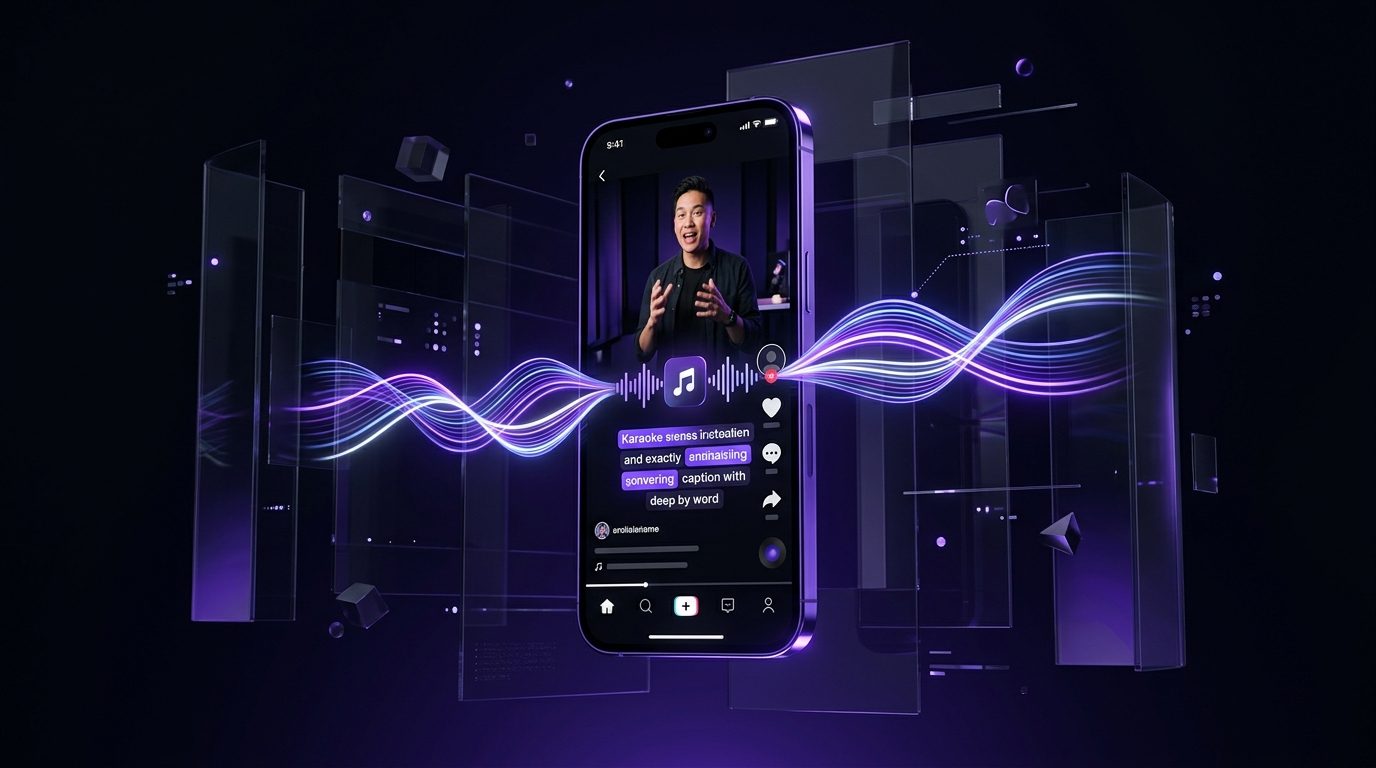
The other half is everything that happens to a recording you already have: the clip generator finds the moments worth posting, captions are burned in word by word, and the scheduler posts all of it from one calendar. Generated or recorded, it lands in the same project and goes out the same way.

Also in Splicora

Questions

The things people ask first.

Yes. The canvas works on anything in your library, including pictures you uploaded rather than generated: erase part of it, expand the frame, replace the background or restyle it.

Yes. Pictures you generate are yours to use, including in client work. You are responsible for what you ask for, so avoid prompts naming living people or other companies' brands and characters.

A picture is 1 credit on Standard and 2 credits on Best, so the free plan's 25 credits a month are 25 Standard pictures. A prompt that returns four pictures charges for four.

Say them in the prompt and they are used. For everything downstream the brand kit does it for you: the fonts, the colours and the caption presets saved there are applied to thumbnails, captions and posts without being asked for again.

Yes. The video generator animates a still, so a picture you like can become a few seconds of motion for a short or a cutaway.

Also in Splicora

You do not have to start with a recording.

The same workspace generates images, video, voices and avatars from a sentence, with the price of each shown before you spend a credit. Whatever it makes lands in the project beside the clips, captions and posts, ready for the same scheduler.

Start with what you have.

A link, an upload, or a sentence. Every price is shown before you spend a credit.

We use cookies for analytics. Necessary cookies always run. Cookie Policy